Building a Real Spreadsheet
As the owner of a small restaurant you decide to prepare a profit budget for the next six months on a spreadsheet.
Exercise
Create the following spreadsheet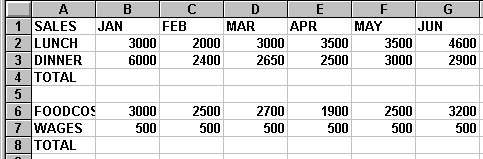
If you typed the text in uppercase you may have seen that the text FOOD COST did not fit into a single cell.
When you typed in the numbers into cell B6 the end of the word 'FOODCOSTS' disappeared.
Let's fix this.
Changing Column Widths
Every column in Excel has a default width assigned to it when you start a new sheet.
To change the width of a column we can use the mouse or a series of keyboard commands.
To change the width of the column with the mouse we drag the column out to the desired position, see below.
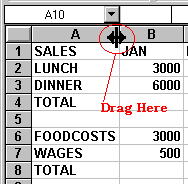
As you move the mouse to the line between the two column labels you will notice that the pointer disappears and is replaces by another tool.
This tool allows you to drag the column size to any size you wish.
As you move the column the size of the column is displayed in the Formula Bar.
As a quick way of setting column widths, move to the line between the two column labels and, when the mouse changes shape, DOUBLE click.
Bingo! The column is the perfect width automatically.